
LLM Inference with Ollama on IBM Power9 Using CPU
Context
This post presents a practical guide for performing inference of large Language Models (LLMs) using Ollama, in an IBM POWER9 environment. Ollama is a framework based on llama.cpp, designed to simplify the implementation and execution of such models, offering a user-friendly interface and support for various tasks.
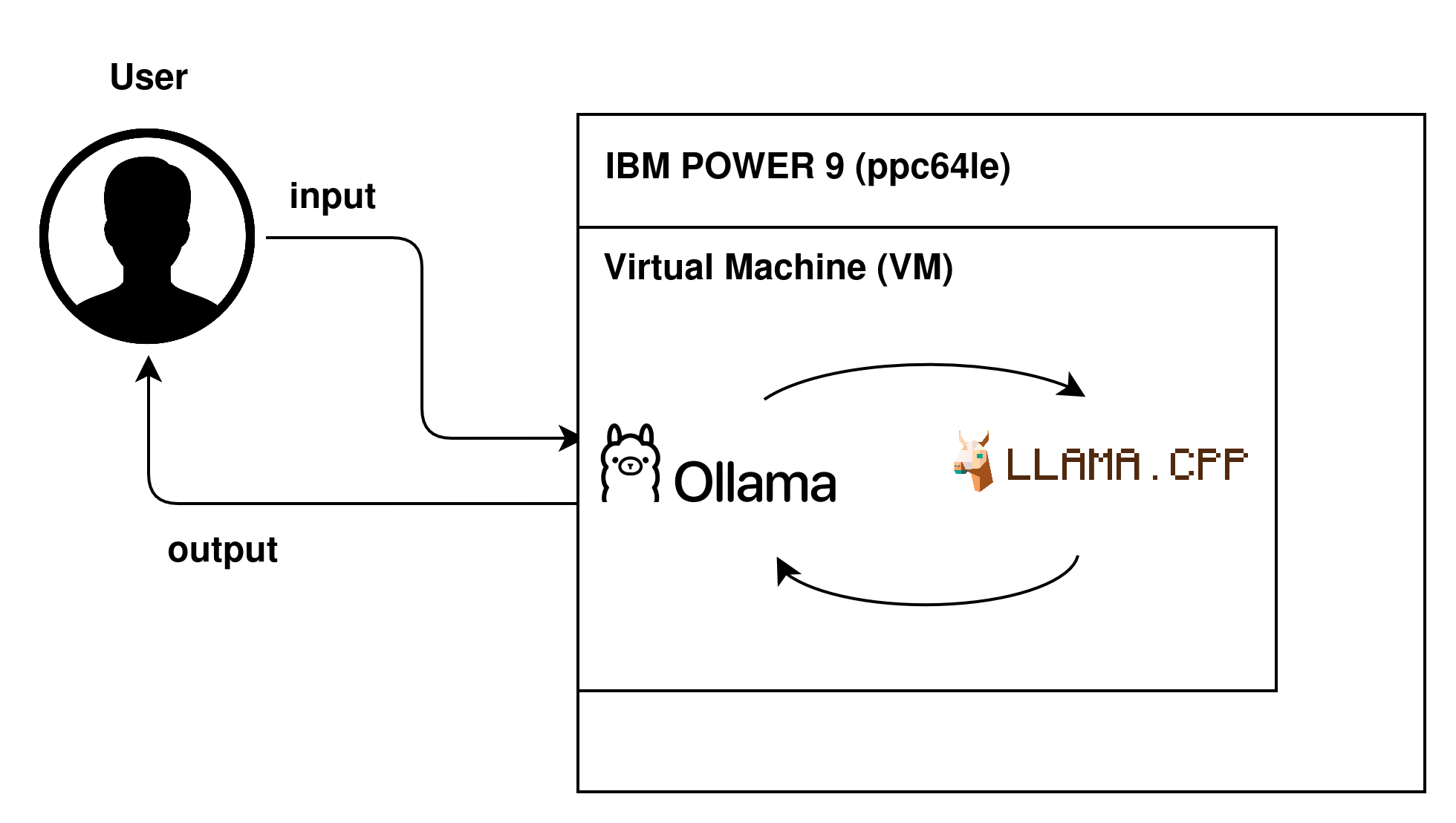
Flow of a request
Despite the growth in LLM usage, the availability of materials focused on the ppc64le architecture (IBM POWER9) is still quite limited. In general, available tutorials are old, poorly detailed, or focused on more common architectures like x86_64, which makes reproducing the environment in the presented context difficult. This is the first of two posts in this series, which aims to perform inference entirely via CPU, exploring the ppc64le architecture, in an updated, practical, and reproducible way. In the next post, we will address the use of GPU to accelerate the process.
TL;DR
- This post presents details on how to configure the environment to perform inferences with IBM POWER9 infrastructure.
- Execution is performed via CPU using Ollama;
- The main challenge involves correctly configuring the environment, especially dependencies like Go, GCC, and CMake, in addition to compatibility with RHEL
Environment Used
Hardware:
- ppc64le architecture;
- RAM: ~64GB;
- Execution: Virtual Machine (VM);
Operating System: Alma Linux 8.10 (ppc64le), binary compatible with Red Hat Enterprise Linux (RHEL) 8.9/8.10.
Initial Setup
To run Ollama on the POWER9 architecture, it is necessary to prepare the environment with the appropriate dependencies. The first step is to update the system and install basic utilities:
sudo dnf update -y
sudo dnf install -y wget git tar make gcc gcc-c++ cmake gcc-toolset-11
Although this command installs some dependencies, it is necessary to ensure that the correct versions are being used.
Configuring Go
Ollama is developed in Go, so it is necessary to ensure the appropriate version.
Expected Version: 1.25.7 linux/ppc64le
If not installed:
wget https://go.dev/dl/go1.25.7.linux-ppc64le.tar.gz
sudo tar -C /usr/local -xzf go1.25.7.linux-ppc64le.tar.gz
export PATH=/usr/local/go/bin:$PATH
To add to PATH permanently:
echo 'export PATH=/usr/local/go/bin:$PATH' >> ~/.bashrc
source ~/.bashrc
Verify if the version is correct: go version
Configuring CMake
Verify if the version is correct: cmake --version
Expected Version: cmake 3.26.5
If not installed:
wget https://github.com/Kitware/CMake/releases/download/v3.26.5/cmake-3.26.5.tar.gz
tar -xzf cmake-3.26.5.tar.gz
cd cmake-3.26.5
./bootstrap
make -j$(nproc)
sudo make install
Configuring GCC
Expected Version: gcc 11.2.1
Important: On AlmaLinux 8, the gcc-toolset is not activated automatically. It is necessary to enable the session manually:
scl enable gcc-toolset-11 bash
This command activates GCC only in the current session. If you open another terminal, you will need to run the command again.
Verify the version: gcc --version
If not installed:
sudo dnf install -y gcc-toolset-11
scl enable gcc-toolset-11 bash
Cloning Ollama
With the environment configured, we can build Ollama. Here we clone the official Ollama repository and change the version used (important for POWER compatibility and to get a stable version).
cd /root
git clone https://github.com/ollama/ollama.git
cd ollama

#Change the version:
git checkout v0.9.4
To verify, use: git status
Build Ollama
After activating GCC in the correct version:
export CGO_ENABLED=1
go clean -cache -modcache -i -r
go build -o ollama .
CGO needs to be enabled because Ollama depends on llama.cpp, which uses C/C++ code for performance optimizations. Without it, the build fails or loses compatibility with the architecture.
This should occur without any errors and generate the ollama binary created in the current directory.
To verify: ./ollama --version
Performing Inference
With Ollama compiled, we can start the server:
./ollama serve
An important observation is that, since the environment is running on a virtual machine, it is not possible to keep the command running in the main terminal and, simultaneously, use another terminal in the same session to perform inference, without some auxiliary tool to manage multiple terminals. What we will do then is run the server in the background, but you can choose to use Tmux or Screen, allowing the same terminal to remain available for executing the remaining commands (which we will see next). For this, you can run:
./ollama serve &
To verify if it worked: ps aux | grep ollama. It will show something like:

Ollama running
Download the test model and run inference
For validation, we used the TinyLlama model, as it is lightweight and suitable for CPU execution. For this, in another terminal, run:
./ollama pull tinyllama
To run inference:
./ollama run tinyllama "The sky is blue?"
If everything has been done correctly, you will have something like:

Inference being executed
It is important to highlight that Ollama works, by default, with models available in its own repository, which are already converted and optimized for execution, generally in a format compatible with llama.cpp. These models can be easily used via the ollama pull command, as in the case of TinyLlama used in this example. Although it is possible to use external models, this requires additional steps, such as conversion to compatible formats (for example, GGUF) and the creation of a Modelfile.
Final Considerations
With the steps presented, it was possible to configure the environment to run LLM inferences on an IBM POWER9 machine using the CPU. Although functional, this approach has limitations in performance, especially for larger models, due to the absence of GPU acceleration. As a next step, we intend to explore execution using GPU, evaluating performance gains and scalability.
Next Steps
- Test newer versions and compatibility between them;
- Conduct benchmarking experiments to compare CPU Inference performance against GPU inference;
- Second post in this series, performing GPU inference.