
LLM Inference with Ollama on IBM Power9 Using GPU
Context
This is the second post in the series about language model inference on POWER9 with Ollama. In this article, we will cover how to send requests using GPU, achieving a significant performance gain compared to the CPU approach shown in the previous post.
The main challenge is that Ollama does not offer official support for the ppc64le architecture with CUDA. The solution was found through an official IBM community blog, where a contributor made a fork of Ollama adapted to support NVIDIA GPUs on POWER9 via CUDA. However, that fork is outdated and does not support newer models like Gemma 3 and DeepSeek.
Therefore, we developed an updated fork, based on the official Ollama (v0.23.2), with the necessary patches for ppc64le and GPU support via CUDA. This tutorial explains how to compile Ollama for the ppc64le architecture, and for those who don’t want to compile, we also provide a pre-compiled binary in the releases on GitHub.
TL;DR
- This post presents details on setting up the environment to perform inferences using IBM POWER9 infrastructure;
- Ollama does not offer official support for ppc64le with CUDA;
- The fork was compiled from scratch using CMake and Go, pointing to CUDA 12.2 and specifying the V100 architecture (
sm_70); - A pre-compiled binary is also available on the project’s GitHub;
- With this, it was possible to run LLM inference on IBM POWER9 with GPU acceleration and support for recent models.
Environment Used
Hardware:
- ppc64le architecture;
- Recommended minimum RAM: ~64GB;
- GPU: NVIDIA Tesla V100;
- NVIDIA driver: 535.54.03;
- CUDA: version 12.2.
Operating System: Alma Linux 8.10 (ppc64le), binary compatible with Red Hat Enterprise Linux (RHEL) 8.9/8.10.
Initial Checks
- Verify that the driver and GPU are visible:
nvidia-smi
- Verify that CUDA is installed:
nvcc --version
Note: If nothing appears, try:
export PATH=/usr/local/cuda-12.2/bin:$PATH
export CUDACXX=/usr/local/cuda-12.2/bin/nvcc
- Also verify that CUDA 12 exists:
ls -la /usr/local/cuda-12
Running in a Virtual Environment
In this tutorial, we make the necessary configuration inside a virtual environment to isolate execution and settings. This is optional but recommended.
conda create -n ollamaGPU python=3.11 -y
conda activate ollamaGPU
To deactivate the environment:
conda deactivate
Initial Setup
To compile Ollama on POWER9, the following dependencies with appropriate versions are required:
- Go: 1.26.0
- GCC: 11.2.1 (via gcc-toolset-11)
- CMake: >= 3.24
Cloning and Building Ollama
With the environment configured, we can build Ollama. The compilation uses CMake to generate CUDA kernels with nvcc, and Go to compile the binary. An important detail is the CUDA_ARCHITECTURES=70 parameter: each NVIDIA GPU has a specific architecture identified by an sm_XX code, and the V100 is from the Volta architecture (sm_70). By specifying this value, we instruct the build to compile only for the V100, reducing compilation time.
The complete step-by-step compilation, including the necessary fixes for ppc64le, as well as installation and configuration of the dependencies mentioned earlier, is documented in the repository’s README.
For those who don’t want to compile, a pre-compiled binary is available directly from the releases page:
# Download the binary
wget https://github.com/llm-pt-ibm/ollama-ppc64le/releases/download/v0.23.2-ppc64le-power9/ollama-ppc64le

# Give execute permission
chmod +x ollama-ppc64le
Note: The repository contains branches of the official Ollama. The patches for ppc64le are exclusively in the ollama-ppc64le branch.
Performing Inference
With Ollama compiled, we can start the server:
./ollama serve
To verify it worked, type: ps aux | grep ollama.
Wait a few seconds and check the logs to confirm the server detected the GPUs correctly. Look for these lines:
inference compute ... library=CUDA compute=7.0 ... description="Tesla V100-SXM2-16GB" total="16.0 GiB"
Download the test model and run inference
For validation, we used the llama3.1:8b model. In another terminal, run:
./ollama pull llama3.1:8b
To run inference:
./ollama run llama3.1:8b "tell me all odd numbers up to 100"
Confirm GPU usage
In another terminal, with inference running, run:
nvidia-smi
In the processes section, you should see ollama with memory allocated on one of the GPUs:
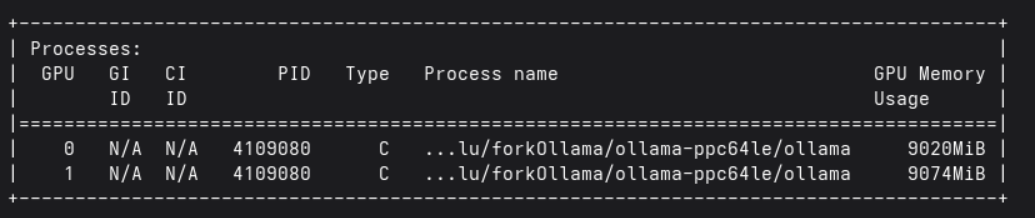
Ollama using the GPU
Final Considerations
With the steps presented, it was possible to configure the environment to run LLM inference on an IBM POWER9 machine using NVIDIA Tesla V100 GPUs. With this approach, model inference has a significant performance gain compared to CPU execution. Using the Meta Llama 3.1 8B Instruct model as a reference, GPU execution achieved a higher token generation rate than CPU execution.
Let’s look at the collected data for the same request (tell me all odd numbers up to 100) with both types of execution:
| CPU | GPU | |
|---|---|---|
| Token generation rate | 0.71 tokens/s | 79.82 tokens/s |
| Total duration | 3m49s | 4.52s |
| Prompt evaluation rate | 10.67 tokens/s | 295.77 tokens/s |
With the data presented in the table, we see that GPU execution was approximately 112 times faster in token generation, with total response time reduced from 3 minutes and 49 seconds to 4.52 seconds.
Next Steps
- Evaluate GPU and CPU execution in a comparative post and with other architectures;
- Test GPU inference with larger models, with more than 8 billion parameters, for example;
- Test new models available in the updated fork, such as Gemma 3 and DeepSeek;