
LLMs Inference API on IBM Power9 Server
Background
This is the fourth and final post in a tutorial series that aims to show step by step how to build a LLM API on a Power9 server, from operating system setup to remote inference execution. We already configured the operating system, NVIDIA drivers, CUDA, and cuDNN in the first post, installed Conda and PyTorch in the second post, and built the API in the third post. In this stage, we will present the built API and show how to make requests.
TL;DR
- This post introduces the built LLM inference API and how to use it.
- We will show how to make requests using Python and curl.
Introducing the API
Built with FastAPI, it includes loading specific models, keeping them in GPU memory for successive calls, and generating text from prompts sent via HTTP requests. It was implemented with FastAPI and includes API Key access control, memory management (loading and unloading models), support for multiple GPUs with automatic sharding, and endpoints for status queries. The goal is to provide a robust, production-ready service optimized for intensive use, ensuring fast inferences and easy integration with external applications.
Architecture Overview
The API exposes LLMs via FastAPI with REST endpoints. The ModelManager handles loading, unloading, and model inference, keeping models in GPU memory for fast calls. Authentication is enforced via API Key. The architecture supports multiple GPUs with automatic sharding to optimize memory usage and performance. Models are sourced from Hugging Face and use the Transformers library to perform inferences.
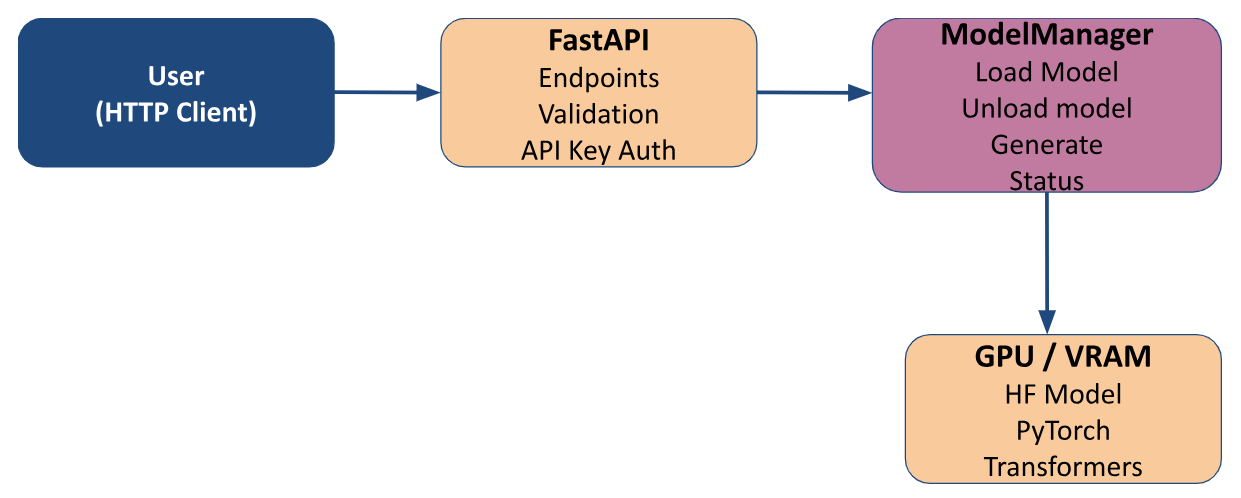
Architecture Diagram
Main Features
Load Models
/load_model- Loads a model from the Hugging Face Hub
- Performs sharding across GPUs
- Supports Hugging Face Token
Generate Text
/generate- Accepts prompt, max_tokens, model name, temperature, and top_p
- Uses an already loaded model or loads a new one
- Returns result in JSON
Management
/status: Checks the loaded model and device (CPU/GPU)/unload_model: Frees GPU and memory/generate_apikey: Creates API keys from LDAP user
Usage Flow
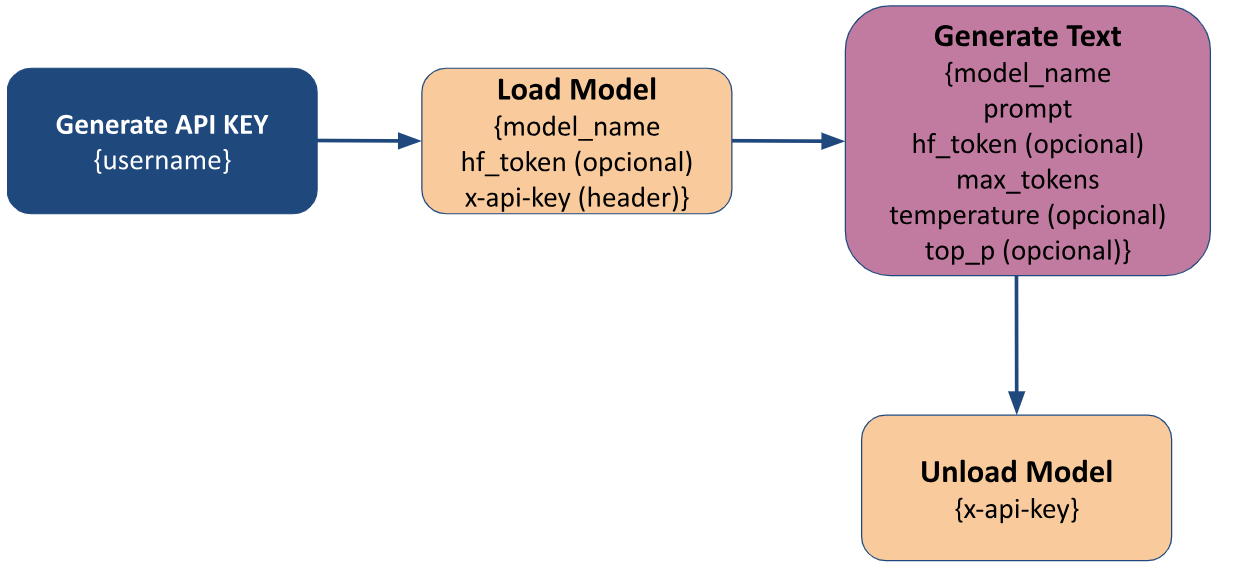
Usage flow diagram
Inputs and Endpoints
The table below describes the API endpoints, required inputs, and responses.
| Endpoints | Method | Api Key | Input (Body/Query) | Response |
|---|---|---|---|---|
/generate_apikey | POST | ❌ | {username} | API Key |
/load_model | POST | ✅ | {model_name hf_token(opcional) device(opcional)} | None, just loads the model |
/generate | POST | ✅ | {model_name prompt hf_token(opcional) max_tokens(opcional) temperature(opcional) top_p(opcional) } | Text generated by the model |
/status | GET | ✅ | None | Model status and the device it is loaded on |
/unload_model | POST | ✅ | None | None, just unloads the model |
How to Use the API with Python
Generate API Key
 1import requests
 2import json
 3import os
 4
 5url = "http://<power9_ip_server>:8000/"
 6username = <ldap_user>
 7hf_token = os.getenv("HUGGINGFACE_TOKEN")
 8
 9response = requests.post(f"{url}/generate_apikey", json={"username": username}).content.decode()
10
11api_key = json.loads(response).get("api_key")
- It is important that the Hugging Face Token is set as an environment variable in the location where the inference will run.
api_keywill be the return value of the called function.
Load Model
First, we need to create a header containing the API Key returned from the code above and the payload with model_name and the Hugging Face token hf_token. After that, we can send the request with these two pieces of information.
1headers = {"Content-Type": "application/json",
2"x-api-key": api_key}
3
4payload = {"model_name": "ibm-granite/granite-3.3-8b-instruct",
5           "hf_token": hf_token}
6
7resp = requests.post(f"{url}/load_model", headers=headers, json=payload)
Generate Text
Now we need to create a new payload with the necessary information to generate text with an LLM, which includes: prompt, model_name, and hf_token.
1payload = {"prompt": "Hello, tell me a little about the Federal University of Campina Grande (UFCG)",
2           "model_name": "ibm-granite/granite-3.3-8b-instruct",
3           "hf_token": hf_token}
4
5resp = requests.post(f"{url}/generate", headers=headers, json=payload)
6
7resp = json.loads(resp.content.decode())
Check status and unload the model
To check the status and unload the model, we don’t need to send anything in the payload—just the header with the API key:
1requests.get(f"{url}/status", headers=headers).content
1resp = requests.post(f"{url}/unload_model", headers=headers)
How to use the API with curl in CLI
Generate API Key
curl -X POST "http://<power9_ip_server>:8000/generate_apikey" \
  -H "Content-Type: application/json" \
  -d '{"username": <ldap_user>}'
- It is important that the Hugging Face Token is set as an environment variable in the location where the inference will run.
- The user in the username field must be enclosed in quotation marks (" “)
- After running the request above, the returned API key should be saved as an environment variable to make future executions easier. To save it, copy the returned API key and run the command:
export API_KEY_P9=<returned_api_key>
Load Model
curl -X POST "http://<power9_ip_server>:8000/load_model" \
  -H "Content-Type: application/json" \
  -H "x-api-key: $API_KEY" \
  -d '{
        "model_name":"ibm-granite/granite-3.3-8b-instruct",
        "hf_token":"'"$HUGGINGFACE_TOKEN"'"
      }'
Generate Text
curl -X POST "http://<power9_ip_server>:8000/generate" \
  -H "Content-Type: application/json" \
  -H "x-api-key: $API_KEY" \
  -d '{
        "model_name": "ibm-granite/granite-3.3-8b-instruct"
        "prompt":"Hello, tell me a little about the Federal University of Campina Grande (UFCG)",
        "hf_token": "'"$HUGGINGFACE_TOKEN"'",
        "max_tokens":50
      }'
Check status and unload the model
To check the status and unload the model, we don’t need to send anything in the payload—just the header with the API key:
curl -X GET "http://<power9_ip_server>:8000/status" \
  -H "Content-Type: application/json" \
  -H "x-api-key: $API_KEY"
curl -X POST "http://<power9_ip_server>:8000/unload_model" \
  -H "Content-Type: application/json" \
  -H "x-api-key: $API_KEY"
We hope this series has helped clarify the full development and deployment process. The LLM-IBM-UFCG team is available for questions or suggestions about future improvements.